

- Python
- Node
- Java
- Kotlin
- C#
You can find the complete code for this tutorial here.Add your key to the Add You can find the complete The client will: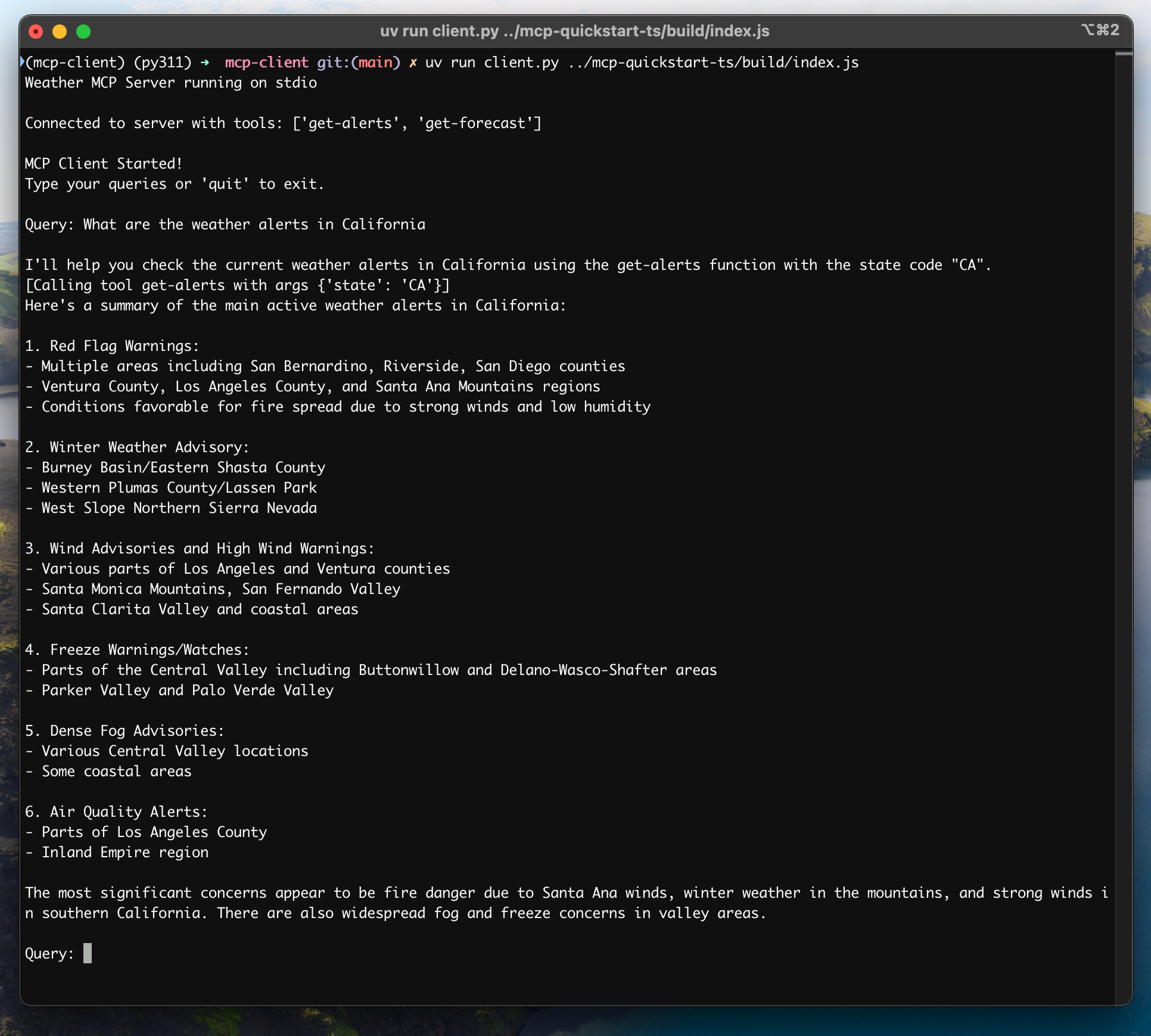
System Requirements
Before starting, ensure your system meets these requirements:- Mac or Windows computer
- Latest Python version installed
- Latest version of
uvinstalled
Setting Up Your Environment
First, create a new Python project withuv:# Create project directory
uv init mcp-client
cd mcp-client
# Create virtual environment
uv venv
# Activate virtual environment
# On Windows:
.venv\Scripts\activate
# On Unix or MacOS:
source .venv/bin/activate
# Install required packages
uv add mcp anthropic python-dotenv
# Remove boilerplate files
rm main.py
# Create our main file
touch client.py
Setting Up Your API Key
You’ll need an Anthropic API key from the Anthropic Console.Create a.env file to store it:# Create .env file
touch .env
.env file:ANTHROPIC_API_KEY=<your key here>
.env to your .gitignore:echo ".env" >> .gitignore
Make sure you keep your
ANTHROPIC_API_KEY secure!Creating the Client
Basic Client Structure
First, let’s set up our imports and create the basic client class:import asyncio
from typing import Optional
from contextlib import AsyncExitStack
from mcp import ClientSession, StdioServerParameters
from mcp.client.stdio import stdio_client
from anthropic import Anthropic
from dotenv import load_dotenv
load_dotenv() # load environment variables from .env
class MCPClient:
def __init__(self):
# Initialize session and client objects
self.session: Optional[ClientSession] = None
self.exit_stack = AsyncExitStack()
self.anthropic = Anthropic()
# methods will go here
Server Connection Management
Next, we’ll implement the method to connect to an MCP server:async def connect_to_server(self, server_script_path: str):
"""Connect to an MCP server
Args:
server_script_path: Path to the server script (.py or .js)
"""
is_python = server_script_path.endswith('.py')
is_js = server_script_path.endswith('.js')
if not (is_python or is_js):
raise ValueError("Server script must be a .py or .js file")
command = "python" if is_python else "node"
server_params = StdioServerParameters(
command=command,
args=[server_script_path],
env=None
)
stdio_transport = await self.exit_stack.enter_async_context(stdio_client(server_params))
self.stdio, self.write = stdio_transport
self.session = await self.exit_stack.enter_async_context(ClientSession(self.stdio, self.write))
await self.session.initialize()
# List available tools
response = await self.session.list_tools()
tools = response.tools
print("\nConnected to server with tools:", [tool.name for tool in tools])
Query Processing Logic
Now let’s add the core functionality for processing queries and handling tool calls:async def process_query(self, query: str) -> str:
"""Process a query using Claude and available tools"""
messages = [
{
"role": "user",
"content": query
}
]
response = await self.session.list_tools()
available_tools = [{
"name": tool.name,
"description": tool.description,
"input_schema": tool.inputSchema
} for tool in response.tools]
# Initial Claude API call
response = self.anthropic.messages.create(
model="claude-3-5-sonnet-20241022",
max_tokens=1000,
messages=messages,
tools=available_tools
)
# Process response and handle tool calls
final_text = []
assistant_message_content = []
for content in response.content:
if content.type == 'text':
final_text.append(content.text)
assistant_message_content.append(content)
elif content.type == 'tool_use':
tool_name = content.name
tool_args = content.input
# Execute tool call
result = await self.session.call_tool(tool_name, tool_args)
final_text.append(f"[Calling tool {tool_name} with args {tool_args}]")
assistant_message_content.append(content)
messages.append({
"role": "assistant",
"content": assistant_message_content
})
messages.append({
"role": "user",
"content": [
{
"type": "tool_result",
"tool_use_id": content.id,
"content": result.content
}
]
})
# Get next response from Claude
response = self.anthropic.messages.create(
model="claude-3-5-sonnet-20241022",
max_tokens=1000,
messages=messages,
tools=available_tools
)
final_text.append(response.content[0].text)
return "\n".join(final_text)
Interactive Chat Interface
Now we’ll add the chat loop and cleanup functionality:async def chat_loop(self):
"""Run an interactive chat loop"""
print("\nMCP Client Started!")
print("Type your queries or 'quit' to exit.")
while True:
try:
query = input("\nQuery: ").strip()
if query.lower() == 'quit':
break
response = await self.process_query(query)
print("\n" + response)
except Exception as e:
print(f"\nError: {str(e)}")
async def cleanup(self):
"""Clean up resources"""
await self.exit_stack.aclose()
Main Entry Point
Finally, we’ll add the main execution logic:async def main():
if len(sys.argv) < 2:
print("Usage: python client.py <path_to_server_script>")
sys.exit(1)
client = MCPClient()
try:
await client.connect_to_server(sys.argv[1])
await client.chat_loop()
finally:
await client.cleanup()
if __name__ == "__main__":
import sys
asyncio.run(main())
client.py file here.Key Components Explained
1. Client Initialization
- The
MCPClientclass initializes with session management and API clients - Uses
AsyncExitStackfor proper resource management - Configures the Anthropic client for Claude interactions
2. Server Connection
- Supports both Python and Node.js servers
- Validates server script type
- Sets up proper communication channels
- Initializes the session and lists available tools
3. Query Processing
- Maintains conversation context
- Handles Claude’s responses and tool calls
- Manages the message flow between Claude and tools
- Combines results into a coherent response
4. Interactive Interface
- Provides a simple command-line interface
- Handles user input and displays responses
- Includes basic error handling
- Allows graceful exit
5. Resource Management
- Proper cleanup of resources
- Error handling for connection issues
- Graceful shutdown procedures
Common Customization Points
-
Tool Handling
- Modify
process_query()to handle specific tool types - Add custom error handling for tool calls
- Implement tool-specific response formatting
- Modify
-
Response Processing
- Customize how tool results are formatted
- Add response filtering or transformation
- Implement custom logging
-
User Interface
- Add a GUI or web interface
- Implement rich console output
- Add command history or auto-completion
Running the Client
To run your client with any MCP server:uv run client.py path/to/server.py # python server
uv run client.py path/to/build/index.js # node server
If you’re continuing the weather tutorial from the server quickstart, your command might look something like this:
python client.py .../quickstart-resources/weather-server-python/weather.py- Connect to the specified server
- List available tools
- Start an interactive chat session where you can:
- Enter queries
- See tool executions
- Get responses from Claude
How It Works
When you submit a query:- The client gets the list of available tools from the server
- Your query is sent to Claude along with tool descriptions
- Claude decides which tools (if any) to use
- The client executes any requested tool calls through the server
- Results are sent back to Claude
- Claude provides a natural language response
- The response is displayed to you
Best practices
-
Error Handling
- Always wrap tool calls in try-catch blocks
- Provide meaningful error messages
- Gracefully handle connection issues
-
Resource Management
- Use
AsyncExitStackfor proper cleanup - Close connections when done
- Handle server disconnections
- Use
-
Security
- Store API keys securely in
.env - Validate server responses
- Be cautious with tool permissions
- Store API keys securely in
Troubleshooting
Server Path Issues
- Double-check the path to your server script is correct
- Use the absolute path if the relative path isn’t working
- For Windows users, make sure to use forward slashes (/) or escaped backslashes (\) in the path
- Verify the server file has the correct extension (.py for Python or .js for Node.js)
# Relative path
uv run client.py ./server/weather.py

# Absolute path
uv run client.py /Users/username/projects/mcp-server/weather.py

# Windows path (either format works)
uv run client.py C:/projects/mcp-server/weather.py
uv run client.py C:\\projects\\mcp-server\\weather.py
Response Timing
- The first response might take up to 30 seconds to return
- This is normal and happens while:
- The server initializes
- Claude processes the query
- Tools are being executed
- Subsequent responses are typically faster
- Don’t interrupt the process during this initial waiting period
Common Error Messages
If you see:FileNotFoundError: Check your server pathConnection refused: Ensure the server is running and the path is correctTool execution failed: Verify the tool’s required environment variables are setTimeout error: Consider increasing the timeout in your client configuration
You can find the complete code for this tutorial here.Update your Create a Add The client will:
System Requirements
Before starting, ensure your system meets these requirements:- Mac or Windows computer
- Node.js 17 or higher installed
- Latest version of
npminstalled - Anthropic API key (Claude)
Setting Up Your Environment
First, let’s create and set up our project:# Create project directory
mkdir mcp-client-typescript
cd mcp-client-typescript
# Initialize npm project
npm init -y
# Install dependencies
npm install @anthropic-ai/sdk @modelcontextprotocol/sdk dotenv
# Install dev dependencies
npm install -D @types/node typescript
# Create source file
touch index.ts
# Create project directory
md mcp-client-typescript
cd mcp-client-typescript

# Initialize npm project
npm init -y

# Install dependencies
npm install @anthropic-ai/sdk @modelcontextprotocol/sdk dotenv

# Install dev dependencies
npm install -D @types/node typescript

# Create source file
new-item index.ts
package.json to set type: "module" and a build script:package.json
{
  "type": "module",
  "scripts": {
    "build": "tsc && chmod 755 build/index.js"
  }
}
tsconfig.json in the root of your project:tsconfig.json
{
  "compilerOptions": {
    "target": "ES2022",
    "module": "Node16",
    "moduleResolution": "Node16",
    "outDir": "./build",
    "rootDir": "./",
    "strict": true,
    "esModuleInterop": true,
    "skipLibCheck": true,
    "forceConsistentCasingInFileNames": true
  },
  "include": ["index.ts"],
  "exclude": ["node_modules"]
}
Setting Up Your API Key
You’ll need an Anthropic API key from the Anthropic Console.Create a.env file to store it:echo "ANTHROPIC_API_KEY=<your key here>" > .env
.env to your .gitignore:echo ".env" >> .gitignore
Make sure you keep your
ANTHROPIC_API_KEY secure!Creating the Client
Basic Client Structure
First, let’s set up our imports and create the basic client class inindex.ts:import { Anthropic } from "@anthropic-ai/sdk";
import {
MessageParam,
Tool,
} from "@anthropic-ai/sdk/resources/messages/messages.mjs";
import { Client } from "@modelcontextprotocol/sdk/client/index.js";
import { StdioClientTransport } from "@modelcontextprotocol/sdk/client/stdio.js";
import readline from "readline/promises";
import dotenv from "dotenv";
dotenv.config();
const ANTHROPIC_API_KEY = process.env.ANTHROPIC_API_KEY;
if (!ANTHROPIC_API_KEY) {
throw new Error("ANTHROPIC_API_KEY is not set");
}
class MCPClient {
private mcp: Client;
private anthropic: Anthropic;
private transport: StdioClientTransport | null = null;
private tools: Tool[] = [];
constructor() {
this.anthropic = new Anthropic({
apiKey: ANTHROPIC_API_KEY,
});
this.mcp = new Client({ name: "mcp-client-cli", version: "1.0.0" });
}
// methods will go here
}
Server Connection Management
Next, we’ll implement the method to connect to an MCP server:async connectToServer(serverScriptPath: string) {
try {
const isJs = serverScriptPath.endsWith(".js");
const isPy = serverScriptPath.endsWith(".py");
if (!isJs && !isPy) {
throw new Error("Server script must be a .js or .py file");
}
const command = isPy
? process.platform === "win32"
? "python"
: "python3"
: process.execPath;
this.transport = new StdioClientTransport({
command,
args: [serverScriptPath],
});
this.mcp.connect(this.transport);
const toolsResult = await this.mcp.listTools();
this.tools = toolsResult.tools.map((tool) => {
return {
name: tool.name,
description: tool.description,
input_schema: tool.inputSchema,
};
});
console.log(
"Connected to server with tools:",
this.tools.map(({ name }) => name)
);
} catch (e) {
console.log("Failed to connect to MCP server: ", e);
throw e;
}
}
Query Processing Logic
Now let’s add the core functionality for processing queries and handling tool calls:async processQuery(query: string) {
const messages: MessageParam[] = [
{
role: "user",
content: query,
},
];
const response = await this.anthropic.messages.create({
model: "claude-3-5-sonnet-20241022",
max_tokens: 1000,
messages,
tools: this.tools,
});
const finalText = [];
const toolResults = [];
for (const content of response.content) {
if (content.type === "text") {
finalText.push(content.text);
} else if (content.type === "tool_use") {
const toolName = content.name;
const toolArgs = content.input as { [x: string]: unknown } | undefined;
const result = await this.mcp.callTool({
name: toolName,
arguments: toolArgs,
});
toolResults.push(result);
finalText.push(
`[Calling tool ${toolName} with args ${JSON.stringify(toolArgs)}]`
);
messages.push({
role: "user",
content: result.content as string,
});
const response = await this.anthropic.messages.create({
model: "claude-3-5-sonnet-20241022",
max_tokens: 1000,
messages,
});
finalText.push(
response.content[0].type === "text" ? response.content[0].text : ""
);
}
}
return finalText.join("\n");
}
Interactive Chat Interface
Now we’ll add the chat loop and cleanup functionality:async chatLoop() {
const rl = readline.createInterface({
input: process.stdin,
output: process.stdout,
});
try {
console.log("\nMCP Client Started!");
console.log("Type your queries or 'quit' to exit.");
while (true) {
const message = await rl.question("\nQuery: ");
if (message.toLowerCase() === "quit") {
break;
}
const response = await this.processQuery(message);
console.log("\n" + response);
}
} finally {
rl.close();
}
}
async cleanup() {
await this.mcp.close();
}
Main Entry Point
Finally, we’ll add the main execution logic:async function main() {
if (process.argv.length < 3) {
console.log("Usage: node index.ts <path_to_server_script>");
return;
}
const mcpClient = new MCPClient();
try {
await mcpClient.connectToServer(process.argv[2]);
await mcpClient.chatLoop();
} finally {
await mcpClient.cleanup();
process.exit(0);
}
}
main();
Running the Client
To run your client with any MCP server:# Build TypeScript
npm run build
# Run the client
node build/index.js path/to/server.py # python server
node build/index.js path/to/build/index.js # node server
If you’re continuing the weather tutorial from the server quickstart, your command might look something like this:
node build/index.js .../quickstart-resources/weather-server-typescript/build/index.js- Connect to the specified server
- List available tools
- Start an interactive chat session where you can:
- Enter queries
- See tool executions
- Get responses from Claude
How It Works
When you submit a query:- The client gets the list of available tools from the server
- Your query is sent to Claude along with tool descriptions
- Claude decides which tools (if any) to use
- The client executes any requested tool calls through the server
- Results are sent back to Claude
- Claude provides a natural language response
- The response is displayed to you
Best practices
-
Error Handling
- Use TypeScript’s type system for better error detection
- Wrap tool calls in try-catch blocks
- Provide meaningful error messages
- Gracefully handle connection issues
-
Security
- Store API keys securely in
.env - Validate server responses
- Be cautious with tool permissions
- Store API keys securely in
Troubleshooting
Server Path Issues
- Double-check the path to your server script is correct
- Use the absolute path if the relative path isn’t working
- For Windows users, make sure to use forward slashes (/) or escaped backslashes (\) in the path
- Verify the server file has the correct extension (.js for Node.js or .py for Python)
# Relative path
node build/index.js ./server/build/index.js

# Absolute path
node build/index.js /Users/username/projects/mcp-server/build/index.js

# Windows path (either format works)
node build/index.js C:/projects/mcp-server/build/index.js
node build/index.js C:\\projects\\mcp-server\\build\\index.js
Response Timing
- The first response might take up to 30 seconds to return
- This is normal and happens while:
- The server initializes
- Claude processes the query
- Tools are being executed
- Subsequent responses are typically faster
- Don’t interrupt the process during this initial waiting period
Common Error Messages
If you see:Error: Cannot find module: Check your build folder and ensure TypeScript compilation succeededConnection refused: Ensure the server is running and the path is correctTool execution failed: Verify the tool’s required environment variables are setANTHROPIC_API_KEY is not set: Check your .env file and environment variablesTypeError: Ensure you’re using the correct types for tool arguments
This is a quickstart demo based on Spring AI MCP auto-configuration and boot starters.
To learn how to create sync and async MCP Clients manually, consult the Java SDK Client documentation
System Requirements
Before starting, ensure your system meets these requirements:- Java 17 or higher
- Maven 3.6+
- npx package manager
- Anthropic API key (Claude)
- Brave Search API key
Setting Up Your Environment
-
Install npx (Node Package eXecute):
First, make sure to install npm
and then run:
npm install -g npx -
Clone the repository:
git clone https://github.com/spring-projects/spring-ai-examples.git cd model-context-protocol/brave-chatbot -
Set up your API keys:
export ANTHROPIC_API_KEY='your-anthropic-api-key-here' export BRAVE_API_KEY='your-brave-api-key-here' -
Build the application:
./mvnw clean install -
Run the application using Maven:
./mvnw spring-boot:run
Make sure you keep your
ANTHROPIC_API_KEY and BRAVE_API_KEY keys secure!How it Works
The application integrates Spring AI with the Brave Search MCP server through several components:MCP Client Configuration
- Required dependencies in pom.xml:
<dependency>
    <groupId>org.springframework.ai</groupId>
    <artifactId>spring-ai-starter-mcp-client</artifactId>
</dependency>
<dependency>
    <groupId>org.springframework.ai</groupId>
    <artifactId>spring-ai-starter-model-anthropic</artifactId>
</dependency>
- Application properties (application.yml):
spring:
  ai:
    mcp:
      client:
        enabled: true
        name: brave-search-client
        version: 1.0.0
        type: SYNC
        request-timeout: 20s
        stdio:
          root-change-notification: true
          servers-configuration: classpath:/mcp-servers-config.json
        toolcallback:
          enabled: true
    anthropic:
      api-key: ${ANTHROPIC_API_KEY}
spring-ai-starter-mcp-client to create one or more McpClients based on the provided server configuration.
The spring.ai.mcp.client.toolcallback.enabled=true property enables the tool callback mechanism, that automatically registers all MCP tool as spring ai tools.
It is disabled by default.- MCP Server Configuration (
mcp-servers-config.json):
{
  "mcpServers": {
    "brave-search": {
      "command": "npx",
      "args": [
        "-y",
        "@modelcontextprotocol/server-brave-search"
      ],
      "env": {
        "BRAVE_API_KEY": "<PUT YOUR BRAVE API KEY>"
      }
    }
  }
}
Chat Implementation
The chatbot is implemented using Spring AI’s ChatClient with MCP tool integration:var chatClient = chatClientBuilder
.defaultSystem("You are useful assistant, expert in AI and Java.")
.defaultTools((Object[]) mcpToolAdapter.toolCallbacks())
.defaultAdvisors(new MessageChatMemoryAdvisor(new InMemoryChatMemory()))
.build();
- Uses Claude AI model for natural language understanding
- Integrates Brave Search through MCP for real-time web search capabilities
- Maintains conversation memory using InMemoryChatMemory
- Runs as an interactive command-line application
Build and run
./mvnw clean install
java -jar ./target/ai-mcp-brave-chatbot-0.0.1-SNAPSHOT.jar
./mvnw spring-boot:run
- Answer questions using its built-in knowledge
- Perform web searches when needed using Brave Search
- Remember context from previous messages in the conversation
- Combine information from multiple sources to provide comprehensive answers
Advanced Configuration
The MCP client supports additional configuration options:- Client customization through
McpSyncClientCustomizerorMcpAsyncClientCustomizer - Multiple clients with multiple transport types:
STDIOandSSE(Server-Sent Events) - Integration with Spring AI’s tool execution framework
- Automatic client initialization and lifecycle management
<dependency>
    <groupId>org.springframework.ai</groupId>
    <artifactId>spring-ai-mcp-client-webflux-spring-boot-starter</artifactId>
</dependency>
You can find the complete code for this tutorial here.Now, let’s create and set up your project:After running Also, add the following plugins to your build script:Also create a helper function to convert from The client will:
System Requirements
Before starting, ensure your system meets these requirements:- Java 17 or higher
- Anthropic API key (Claude)
Setting up your environment
First, let’s installjava and gradle if you haven’t already.
You can download java from official Oracle JDK website.
Verify your java installation:java --version
# Create a new directory for our project
mkdir kotlin-mcp-client
cd kotlin-mcp-client

# Initialize a new kotlin project
gradle init
# Create a new directory for our project
md kotlin-mcp-client
cd kotlin-mcp-client
# Initialize a new kotlin project
gradle init
gradle init, you will be presented with options for creating your project.
Select Application as the project type, Kotlin as the programming language, and Java 17 as the Java version.Alternatively, you can create a Kotlin application using the IntelliJ IDEA project wizard.After creating the project, add the following dependencies:val mcpVersion = "0.4.0"
val slf4jVersion = "2.0.9"
val anthropicVersion = "0.8.0"
dependencies {
implementation("io.modelcontextprotocol:kotlin-sdk:$mcpVersion")
implementation("org.slf4j:slf4j-nop:$slf4jVersion")
implementation("com.anthropic:anthropic-java:$anthropicVersion")
}
def mcpVersion = '0.3.0'
def slf4jVersion = '2.0.9'
def anthropicVersion = '0.8.0'
dependencies {
    implementation "io.modelcontextprotocol:kotlin-sdk:$mcpVersion"
    implementation "org.slf4j:slf4j-nop:$slf4jVersion"
    implementation "com.anthropic:anthropic-java:$anthropicVersion"
}
plugins {
    id("com.github.johnrengelman.shadow") version "8.1.1"
}
plugins {
    id 'com.github.johnrengelman.shadow' version '8.1.1'
}
Setting up your API key
You’ll need an Anthropic API key from the Anthropic Console.Set up your API key:export ANTHROPIC_API_KEY='your-anthropic-api-key-here'
Make sure your keep your
ANTHROPIC_API_KEY secure!Creating the Client
Basic Client Structure
First, let’s create the basic client class:class MCPClient : AutoCloseable {
private val anthropic = AnthropicOkHttpClient.fromEnv()
private val mcp: Client = Client(clientInfo = Implementation(name = "mcp-client-cli", version = "1.0.0"))
private lateinit var tools: List<ToolUnion>
// methods will go here
override fun close() {
runBlocking {
mcp.close()
anthropic.close()
}
}
Server connection management
Next, we’ll implement the method to connect to an MCP server:suspend fun connectToServer(serverScriptPath: String) {
try {
val command = buildList {
when (serverScriptPath.substringAfterLast(".")) {
"js" -> add("node")
"py" -> add(if (System.getProperty("os.name").lowercase().contains("win")) "python" else "python3")
"jar" -> addAll(listOf("java", "-jar"))
else -> throw IllegalArgumentException("Server script must be a .js, .py or .jar file")
}
add(serverScriptPath)
}
val process = ProcessBuilder(command).start()
val transport = StdioClientTransport(
input = process.inputStream.asSource().buffered(),
output = process.outputStream.asSink().buffered()
)
mcp.connect(transport)
val toolsResult = mcp.listTools()
tools = toolsResult?.tools?.map { tool ->
ToolUnion.ofTool(
Tool.builder()
.name(tool.name)
.description(tool.description ?: "")
.inputSchema(
Tool.InputSchema.builder()
.type(JsonValue.from(tool.inputSchema.type))
.properties(tool.inputSchema.properties.toJsonValue())
.putAdditionalProperty("required", JsonValue.from(tool.inputSchema.required))
.build()
)
.build()
)
} ?: emptyList()
println("Connected to server with tools: ${tools.joinToString(", ") { it.tool().get().name() }}")
} catch (e: Exception) {
println("Failed to connect to MCP server: $e")
throw e
}
}
JsonObject to JsonValue for Anthropic:private fun JsonObject.toJsonValue(): JsonValue {
val mapper = ObjectMapper()
val node = mapper.readTree(this.toString())
return JsonValue.fromJsonNode(node)
}
Query processing logic
Now let’s add the core functionality for processing queries and handling tool calls:private val messageParamsBuilder: MessageCreateParams.Builder = MessageCreateParams.builder()
.model(Model.CLAUDE_3_5_SONNET_20241022)
.maxTokens(1024)
suspend fun processQuery(query: String): String {
val messages = mutableListOf(
MessageParam.builder()
.role(MessageParam.Role.USER)
.content(query)
.build()
)
val response = anthropic.messages().create(
messageParamsBuilder
.messages(messages)
.tools(tools)
.build()
)
val finalText = mutableListOf<String>()
response.content().forEach { content ->
when {
content.isText() -> finalText.add(content.text().getOrNull()?.text() ?: "")
content.isToolUse() -> {
val toolName = content.toolUse().get().name()
val toolArgs =
content.toolUse().get()._input().convert(object : TypeReference<Map<String, JsonValue>>() {})
val result = mcp.callTool(
name = toolName,
arguments = toolArgs ?: emptyMap()
)
finalText.add("[Calling tool $toolName with args $toolArgs]")
messages.add(
MessageParam.builder()
.role(MessageParam.Role.USER)
.content(
"""
"type": "tool_result",
"tool_name": $toolName,
"result": ${result?.content?.joinToString("\n") { (it as TextContent).text ?: "" }}
""".trimIndent()
)
.build()
)
val aiResponse = anthropic.messages().create(
messageParamsBuilder
.messages(messages)
.build()
)
finalText.add(aiResponse.content().first().text().getOrNull()?.text() ?: "")
}
}
}
return finalText.joinToString("\n", prefix = "", postfix = "")
}
Interactive chat
We’ll add the chat loop:suspend fun chatLoop() {
println("\nMCP Client Started!")
println("Type your queries or 'quit' to exit.")
while (true) {
print("\nQuery: ")
val message = readLine() ?: break
if (message.lowercase() == "quit") break
val response = processQuery(message)
println("\n$response")
}
}
Main entry point
Finally, we’ll add the main execution function:fun main(args: Array<String>) = runBlocking {
if (args.isEmpty()) throw IllegalArgumentException("Usage: java -jar <your_path>/build/libs/kotlin-mcp-client-0.1.0-all.jar <path_to_server_script>")
val serverPath = args.first()
val client = MCPClient()
client.use {
client.connectToServer(serverPath)
client.chatLoop()
}
}
Running the client
To run your client with any MCP server:./gradlew build
# Run the client
java -jar build/libs/<your-jar-name>.jar path/to/server.jar # jvm server
java -jar build/libs/<your-jar-name>.jar path/to/server.py # python server
java -jar build/libs/<your-jar-name>.jar path/to/build/index.js # node server
If you’re continuing the weather tutorial from the server quickstart, your command might look something like this:
java -jar build/libs/kotlin-mcp-client-0.1.0-all.jar .../samples/weather-stdio-server/build/libs/weather-stdio-server-0.1.0-all.jar- Connect to the specified server
- List available tools
- Start an interactive chat session where you can:
- Enter queries
- See tool executions
- Get responses from Claude
How it works
Here’s a high-level workflow schema:When you submit a query:- The client gets the list of available tools from the server
- Your query is sent to Claude along with tool descriptions
- Claude decides which tools (if any) to use
- The client executes any requested tool calls through the server
- Results are sent back to Claude
- Claude provides a natural language response
- The response is displayed to you
Best practices
-
Error Handling
- Leverage Kotlin’s type system to model errors explicitly
- Wrap external tool and API calls in
try-catchblocks when exceptions are possible - Provide clear and meaningful error messages
- Handle network timeouts and connection issues gracefully
-
Security
- Store API keys and secrets securely in
local.properties, environment variables, or secret managers - Validate all external responses to avoid unexpected or unsafe data usage
- Be cautious with permissions and trust boundaries when using tools
- Store API keys and secrets securely in
Troubleshooting
Server Path Issues
- Double-check the path to your server script is correct
- Use the absolute path if the relative path isn’t working
- For Windows users, make sure to use forward slashes (/) or escaped backslashes (\) in the path
- Make sure that the required runtime is installed (java for Java, npm for Node.js, or uv for Python)
- Verify the server file has the correct extension (.jar for Java, .js for Node.js or .py for Python)
# Relative path
java -jar build/libs/client.jar ./server/build/libs/server.jar

# Absolute path
java -jar build/libs/client.jar /Users/username/projects/mcp-server/build/libs/server.jar

# Windows path (either format works)
java -jar build/libs/client.jar C:/projects/mcp-server/build/libs/server.jar
java -jar build/libs/client.jar C:\\projects\\mcp-server\\build\\libs\\server.jar
Response Timing
- The first response might take up to 30 seconds to return
- This is normal and happens while:
- The server initializes
- Claude processes the query
- Tools are being executed
- Subsequent responses are typically faster
- Don’t interrupt the process during this initial waiting period
Common Error Messages
If you see:Connection refused: Ensure the server is running and the path is correctTool execution failed: Verify the tool’s required environment variables are setANTHROPIC_API_KEY is not set: Check your environment variables
You can find the complete code for this tutorial here.Then, add the required dependencies to your project:This creates the beginnings of a .NET console application that can read the API key from user secrets.Next, we’ll setup the MCP Client:This configures a MCP client that will connect to a server that is provided as a command line argument. It then lists the available tools from the connected server.The client will: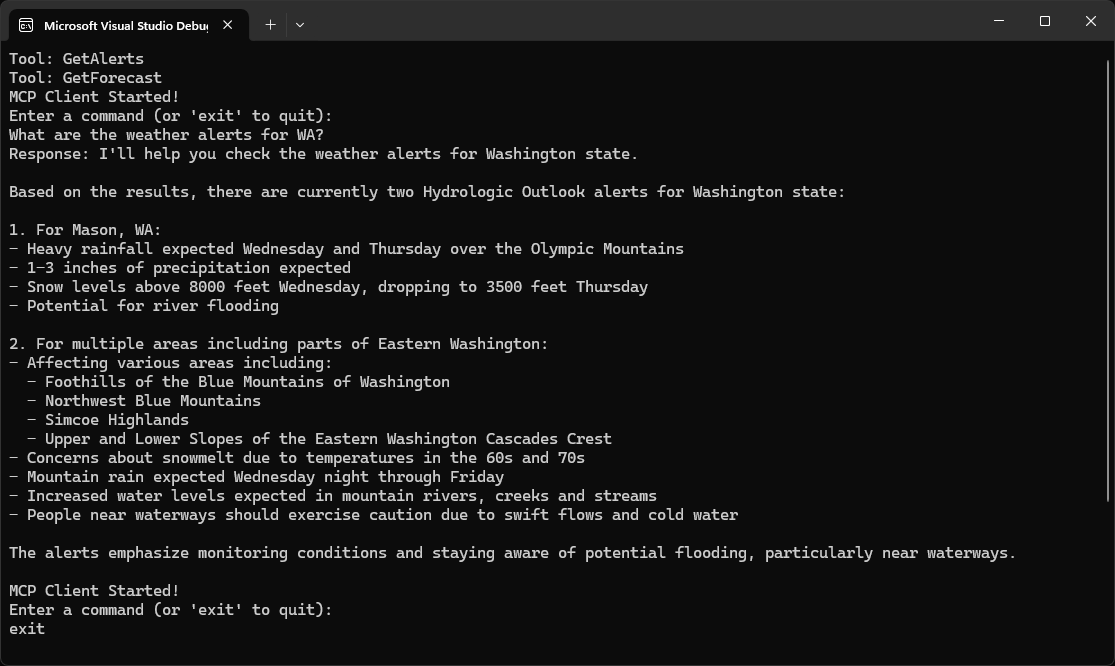
System Requirements
Before starting, ensure your system meets these requirements:- .NET 8.0 or higher
- Anthropic API key (Claude)
- Windows, Linux, or MacOS
Setting up your environment
First, create a new .NET project:dotnet new console -n QuickstartClient
cd QuickstartClient
dotnet add package ModelContextProtocol --prerelease
dotnet add package Anthropic.SDK
dotnet add package Microsoft.Extensions.Hosting
Setting up your API key
You’ll need an Anthropic API key from the Anthropic Console.dotnet user-secrets init
dotnet user-secrets set "ANTHROPIC_API_KEY" "<your key here>"
Creating the Client
Basic Client Structure
First, let’s setup the basic client class:using Microsoft.Extensions.Configuration;
using Microsoft.Extensions.Hosting;
var builder = Host.CreateEmptyApplicationBuilder(settings: null);
builder.Configuration
.AddUserSecrets<Program>();
var (command, arguments) = args switch
{
    [var script] when script.EndsWith(".py") => ("python", script),
    [var script] when script.EndsWith(".js") => ("node", script),
    [var script] when Directory.Exists(script) || (File.Exists(script) && script.EndsWith(".csproj")) => ("dotnet", $"run --project {script} --no-build"),
    _ => throw new NotSupportedException("An unsupported server script was provided. Supported scripts are .py, .js, or .csproj")
};

await using var mcpClient = await McpClientFactory.CreateAsync(new()
{
    Id = "demo-server",
    Name = "Demo Server",
    TransportType = TransportTypes.StdIo,
    TransportOptions = new()
    {
        ["command"] = command,
        ["arguments"] = arguments,
    }
});

var tools = await mcpClient.ListToolsAsync();
foreach (var tool in tools)
{
    Console.WriteLine($"Connected to server with tools: {tool.Name}");
}
Be sure to add the
using statements for the namespaces:using ModelContextProtocol.Client;
using ModelContextProtocol.Protocol.Transport;
Query processing logic
Now let’s add the core functionality for processing queries and handling tool calls:using IChatClient anthropicClient = new AnthropicClient(new APIAuthentication(builder.Configuration["ANTHROPIC_API_KEY"]))
.Messages
.AsBuilder()
.UseFunctionInvocation()
.Build();
var options = new ChatOptions
{
MaxOutputTokens = 1000,
ModelId = "claude-3-5-sonnet-20241022",
Tools = [.. tools]
};
while (true)
{
Console.WriteLine("MCP Client Started!");
Console.WriteLine("Type your queries or 'quit' to exit.");
string? query = Console.ReadLine();
if (string.IsNullOrWhiteSpace(query))
{
continue;
}
if (string.Equals(query, "quit", StringComparison.OrdinalIgnoreCase))
{
break;
}
var response = anthropicClient.GetStreamingResponseAsync(query, options);
await foreach (var message in response)
{
Console.Write(message.Text);
}
Console.WriteLine();
}
Key Components Explained
1. Client Initialization
- The client is initialized using
McpClientFactory.CreateAsync(), which sets up the transport type and command to run the server.
2. Server Connection
- Supports Python, Node.js, and .NET servers.
- The server is started using the command specified in the arguments.
- Configures to use stdio for communication with the server.
- Initializes the session and available tools.
3. Query Processing
- Leverages Microsoft.Extensions.AI for the chat client.
- Configures the
IChatClientto use automatic tool (function) invocation. - The client reads user input and sends it to the server.
- The server processes the query and returns a response.
- The response is displayed to the user.
Running the Client
To run your client with any MCP server:dotnet run -- path/to/server.csproj # dotnet server
dotnet run -- path/to/server.py # python server
dotnet run -- path/to/server.js # node server
If you’re continuing the weather tutorial from the server quickstart, your command might look something like this:
dotnet run -- path/to/QuickstartWeatherServer.- Connect to the specified server
- List available tools
- Start an interactive chat session where you can:
- Enter queries
- See tool executions
- Get responses from Claude
- Exit the session when done
Next steps
Example servers
Check out our gallery of official MCP servers and implementations
Clients
View the list of clients that support MCP integrations
Building MCP with LLMs
Learn how to use LLMs like Claude to speed up your MCP development
Core architecture
Understand how MCP connects clients, servers, and LLMs